
Visit www.thatshandy.app or search “That’s Handy Merchant” in your app store to download the Merchant App. Make sure to choose the Merchant App and not the Customer App. You can also download it directly here.
Once you’ve created your account, you will receive a unique onboarding link that allows you to complete the Onboarding Process. Steps include:
When creating your profile, you submit your identification details; we use this to provide a level of trust and security to our customers, which is a two-way system and customers know when they open their door to service providers that we have vetted them and only ever used in case we need to report anything to the police.
Once the team has reviewed your ID documents, you’ll have a verified tick added to your profile and you can accept bookings. You will get an email that you are ready to Get Handy!
You set your services when you sign up. If you’d like to add services, you can do that through the provider portal or the app. If your service type doesn’t exist, email us and we will update it for you; currently, you can offer per-rate or fixed job charges in your profile currently but we have a range of improvements coming to this in the fall.
Showcase your work by updating images via the Handy Pro portal, which syncs with the app gallery.
Ensure your bank details are correct during sign-up. If you made an error, select your name icon in the top right side, and there you can view/amend your bank details. Please ensure that these are correct, as this is how payouts occur from Butterfield.
Once your profile has been approved, you can update your pricing by selecting your profile and services.
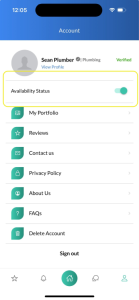
Either from the App, click the person icon and availability toggle between on or off. For example, if you are taking a vacation or don’t want to accept jobs on the weekend.
Current jobs will show via an in-app push notification; they can be viewed by logging on to the Provider Portal, interacting and accepting a job done via the App.
When a customer requests you for an appointment, jobs will show via an in-app push notification; they can be viewed by logging on to the Provider Portal.
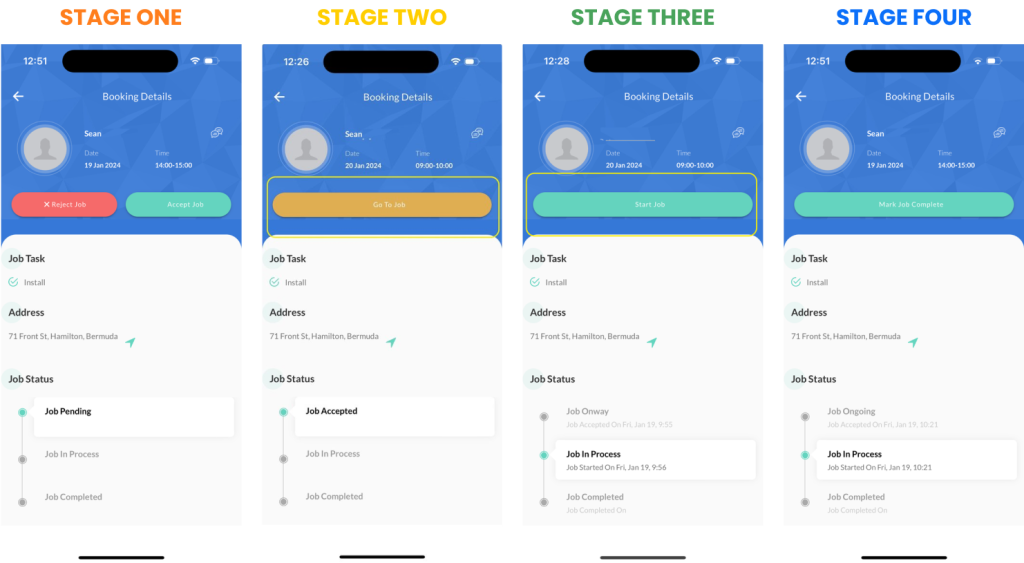
Stage One: Pending – When a customer requests your services, you can either accept or reject the appointment. If the requested time doesn’t work, message the customer to propose a new time.
Stage Two: Go To Job – Prepare for the job. Billing has not started yet.
Stage Three: Start Job – Billing will begin once you start the job.
Stage Four: Complete Job – Billing will end, and the invoice will be issued based on your rate and the job duration.
Log into the provider platform, and the main screen will show you Total Revenue, which is your earnings less fees from using the platform.
Log in to the provider portal and select pay-outs. Pay-outs are made on a fortnightly basis and this will show any payments due to be paid out.
Set up direct deposits to automatically transfer your earnings to your bank account each week. It’s hassle-free and ensures you get your payments regularly; this is a direct deposit to a local bank in Bermuda. (Butterfield, Clarien, HSBC and BCB are all supported)
To keep track of your earnings and review detailed statements, visit your payouts section in the That’s Handy app. Here, you’ll find a breakdown of your completed jobs and any additional charges or reimbursements.
With That’s Handy, you’ll always get upfront prices—either per job or per hour—before confirming any service. No surprises, no guesswork, just clear pricing so you can relax while the work gets done, knowing exactly what you’re paying for. The platform fee is fixed at 14% of the customer’s total amount. For example, for a one-hour job costing $100, you would pay a $14 platform fee. Merchants pay a 10% fee, which is deducted from their payout.
We take estimated trends and demand into account to ensure pricing is fair and transparent. We also factor in taxes, fees and surcharges (without hidden costs!) All of this is built into the price you see upfront
We’ve built That’s Handy to simplify your life—no more wasting hours chasing invoices or dealing with administrative headaches. Imagine how much time you’re saving by letting us handle the boring stuff, so you can focus on what matters.
Every fee you pay helps us reinvest in the platform to bring you more work. With built-in marketing efforts, we’re dedicated to growing your business alongside ours, so you can enjoy more jobs and more profit.
Yes, you pay a small commission fee, but this is reinvested into Ad Spend, allowing us to promote you on social media. This, in turn, drives more business to you, increasing your revenue.
We’re not just stopping here. Our team is constantly working on new features and improvements to make That’s Handy even better for everyone. Stay tuned for even more ways we’ll make your projects easier and more efficient!
Pricing got you a little stuck, drop our support team a note or chat with us [email protected]
Visit www.thatshandy.app or search “That’s Handy Merchant” in your app store to download the Merchant App. Make sure to choose the Merchant App and not the Customer App. You can also download it directly here.
Once you’ve created your account, you will receive a unique onboarding link that allows you to complete the Onboarding Process. Steps include:
When creating your profile, you submit your identification details; we use this to provide a level of trust and security to our customers, which is a two-way system and customers know when they open their door to service providers that we have vetted them and only ever used in case we need to report anything to the police.
Once the team has reviewed your ID documents, you’ll have a verified tick added to your profile and you can accept bookings. You will get an email that you are ready to Get Handy!
You set your services when you sign up. If you’d like to add services, you can do that through the provider portal or the app. If your service type doesn’t exist, email us and we will update it for you; currently, you can offer per-rate or fixed job charges in your profile currently but we have a range of improvements coming to this in the fall.
Showcase your work by updating images via the Handy Pro portal, which syncs with the app gallery.
Ensure your bank details are correct during sign-up. If you made an error, select your name icon in the top right side, and there you can view/amend your bank details. Please ensure that these are correct, as this is how payouts occur from Butterfield.
Once your profile has been approved, you can update your pricing by selecting your profile and services.
Either from the App, click the person icon and availability toggle between on or off. For example, if you are taking a vacation or don’t want to accept jobs on the weekend.
Current jobs will show via an in-app push notification; they can be viewed by logging on to the Provider Portal, interacting and accepting a job done via the App.
When a customer requests you for an appointment, jobs will show via an in-app push notification; they can be viewed by logging on to the Provider Portal.
Stage One: Pending – When a customer requests your services, you can either accept or reject the appointment. If the requested time doesn’t work, message the customer to propose a new time.
Stage Two: Go To Job – Prepare for the job. Billing has not started yet.
Stage Three: Start Job – Billing will begin once you start the job.
Stage Four: Complete Job – Billing will end, and the invoice will be issued based on your rate and the job duration.
Log into the provider platform, and the main screen will show you Total Revenue, which is your earnings less fees from using the platform.
Log in to the provider portal and select pay-outs. Pay-outs are made on a fortnightly basis and this will show any payments due to be paid out.
Set up direct deposits to automatically transfer your earnings to your bank account each week. It’s hassle-free and ensures you get your payments regularly; this is a direct deposit to a local bank in Bermuda. (Butterfield, Clarien, HSBC and BCB are all supported)
To keep track of your earnings and review detailed statements, visit your payouts section in the That’s Handy app. Here, you’ll find a breakdown of your completed jobs and any additional charges or reimbursements.
With That’s Handy, you’ll always get upfront prices—either per job or per hour—before confirming any service. No surprises, no guesswork, just clear pricing so you can relax while the work gets done, knowing exactly what you’re paying for. The platform fee is fixed at 14% of the customer’s total amount. For example, for a one-hour job costing $100, you would pay a $14 platform fee. Merchants pay a 10% fee, which is deducted from their payout.
We take estimated trends and demand into account to ensure pricing is fair and transparent. We also factor in taxes, fees and surcharges (without hidden costs!) All of this is built into the price you see upfront
We’ve built That’s Handy to simplify your life—no more wasting hours chasing invoices or dealing with administrative headaches. Imagine how much time you’re saving by letting us handle the boring stuff, so you can focus on what matters.
Every fee you pay helps us reinvest in the platform to bring you more work. With built-in marketing efforts, we’re dedicated to growing your business alongside ours, so you can enjoy more jobs and more profit.
Yes, you pay a small commission fee, but this is reinvested into Ad Spend, allowing us to promote you on social media. This, in turn, drives more business to you, increasing your revenue.
We’re not just stopping here. Our team is constantly working on new features and improvements to make That’s Handy even better for everyone. Stay tuned for even more ways we’ll make your projects easier and more efficient!
Pricing got you a little stuck, drop our support team a note or chat with us [email protected]